Introduction
The company Infopine has created a set of Maven archetypes to allow the creation of BPEL and CA projects using Maven and Eclipse.
According to the instructions provided, it is necessary to modify the Maven settings to add the Vico repositories hosted in Nexus. Afterwards, the new archetypes must be added to Eclipse.
At first, we were unable to add these archetypes to Eclipse, but later we discovered how to properly configure the Eclipse archetype catalogs.
In order to use Maven project generation in Eclipse through these archetypes created by Infopine, it is necessary to configure the Maven settings to access the Vico repository, as well as a local archetype catalog file.
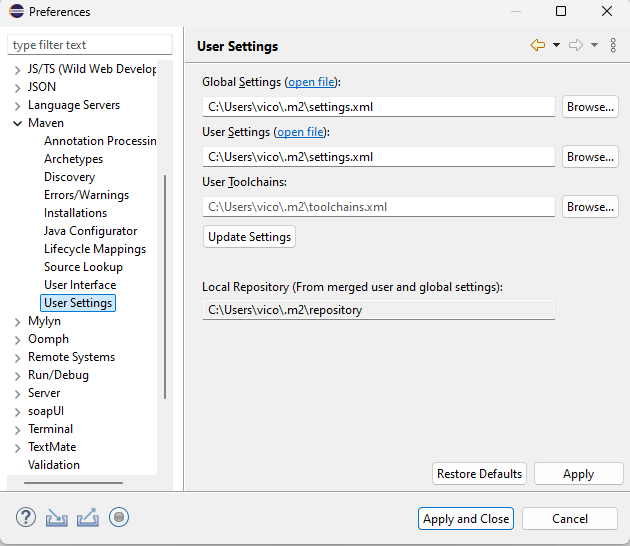
Maven configurationIt is necessary to configure Eclipse so that when it uses Maven, it loads these configurations.
We must configure the Maven settings file (located in the .m2 directory) in order to access the VICO Nexus repositories.
Example repositories where the artifacts are hosted:
https://nexus.vico.org/repository/openesb-premium-releases/
https://nexus.vico.org/repository/openesb-premium-snapshots/
<![CDATA[<?xml version="1.0" encoding="UTF-8"?>

<settings xmlns="https://maven.apache.org/SETTINGS/1.2.0"
  xmlns:xsi="https://www.w3.org/2001/XMLSchema-instance"
  xsi:schemaLocation="https://maven.apache.org/SETTINGS/1.2.0 https://maven.apache.org/xsd/settings-1.2.0.xsd">
  <pluginGroups> </pluginGroups>

  <proxies> </proxies>

  <servers>
    <server>
      <id>openESB-Premium-snapshots</id>
      <username>guest_infopine</username>
      <password>PWDinfopine.</password>
    </server>
    <server>
      <id>openESB-Premium-releases</id>
      <username>guest_infopine</username>
      <password>PWDinfopine.</password>
    </server>
  </servers>

  <mirrors> </mirrors>

  <profiles>
    <profile>
      <id>nexus</id>
      <repositories>
        <repository>
          <id>openESB-Premium-snapshots</id>
          <url>https://nexus.vico.org/repository/openesb-premium-snapshots/</url>
          <releases>
            <enabled>false</enabled>
          </releases>
          <snapshots>
            <enabled>true</enabled>
          </snapshots>
        </repository>
        <repository>
          <id>openESB-Premium-releases</id>
          <url>https://nexus.vico.org/repository/openesb-premium-releases/</url>
          <releases>
            <enabled>true</enabled>
          </releases>
        </repository>
      </repositories>

	  <pluginRepositories>
		<pluginRepository>
			<id>openESB-Premium-releases</id>
			<url>https://nexus.vico.org/repository/openesb-premium-releases/</url>
			<releases>
				<enabled>true</enabled>
				 <updatePolicy>daily</updatePolicy>
			</releases>
		</pluginRepository>

		<pluginRepository>
			<id>central</id>
			<url>https://repo.maven.apache.org/maven2/</url>
			<releases>
				<enabled>true</enabled>
				 <updatePolicy>daily</updatePolicy>
			</releases>
		</pluginRepository>

	  </pluginRepositories>
    </profile>
  </profiles>

  <activeProfiles>
    <activeProfile>nexus</activeProfile>
  </activeProfiles>

</settings>]]>
It is necessary to configure Eclipse so that when it uses Maven, it loads these configurations.
To configure the archetypes, we created a raw repository in our Vico Nexus instance with anonymous access enabled so that Eclipse can access the archetype-catalog.xml file.
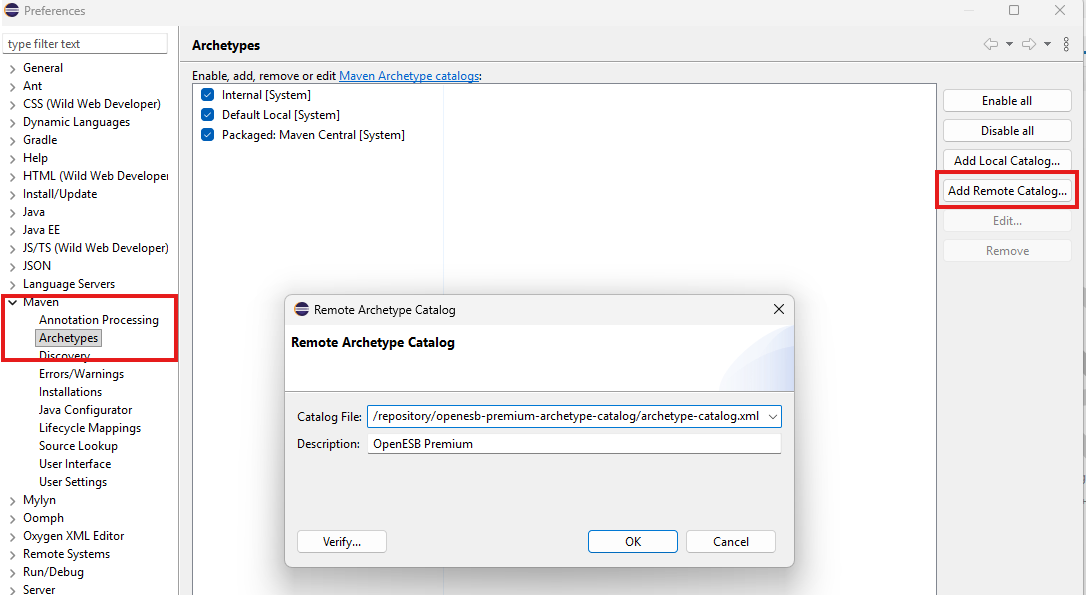
This file will always be updated with the latest release version of the archetype. Therefore, a remote archetype catalog must be configured in Eclipse:
Windows → Preferences → Maven → Archetypes
-
Catalog File: https://nexus.vico.org/repository/openesb-premium-archetype-catalog/archetype-catalog.xml
-
Description: OpenESB Premium
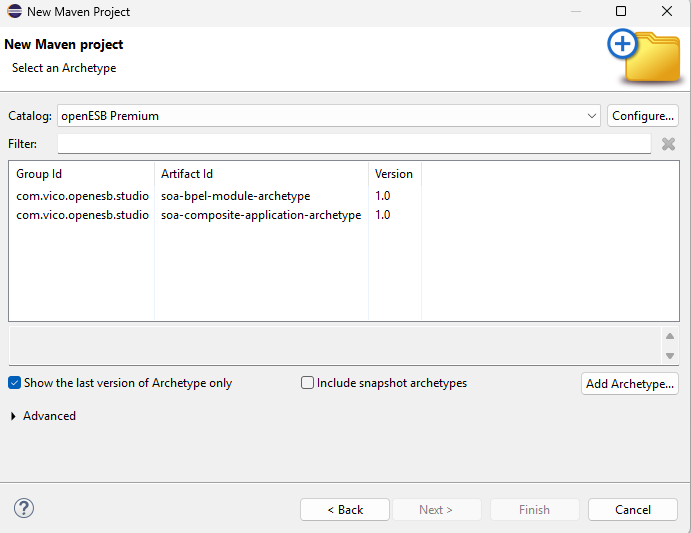
With these steps, we are able to create new Maven projects using Eclipse. However, it is also possible to create them using Maven commands, which are explained in detail below.
BPEL Creation
There are two ways to create projects from the archetypes: either through the command line or through Eclipse, provided that the local catalogs have been configured correctly so the archetype can be detected.
Comand Line
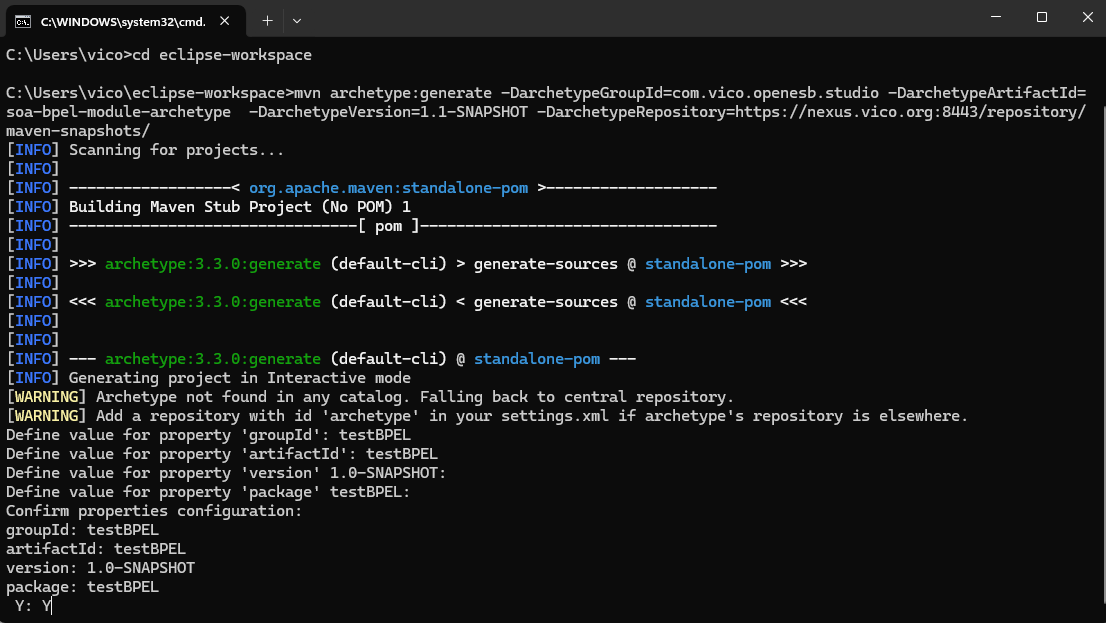
Execute the following command in a CMD command line window from the directory where you want to create the project:
<![CDATA[mvn archetype:generate -DarchetypeGroupId=com.vico.openesb.studio -DarchetypeArtifactId=soa-bpel-module-archetype -DarchetypeVersion=2.0 -DarchetypeRepository=https://nexus.vico.org/repository/openesb-premium-releases/]]>
We must provide the requested parameters and type Y to confirm.
-
groupId: Identifies the group or organization (example: com.example.project).
-
artifactId: Identifies the project or module name.
-
version: The version of the artifact (for example, 1.0.0).
-
package: Project package location.
Eclipse
CA Creation
Execute the following command in a CMD command line window from the directory where you want to create the project, and fill in the requested parameters.
<![CDATA[mvn archetype:generate -DarchetypeGroupId=com.vico.openesb.studio -DarchetypeArtifactId=soa-composite-application-archetype -DarchetypeVersion=2.0 -DarchetypeRepository=https://nexus.vico.org/repository/openesb-premium-releases/]]>
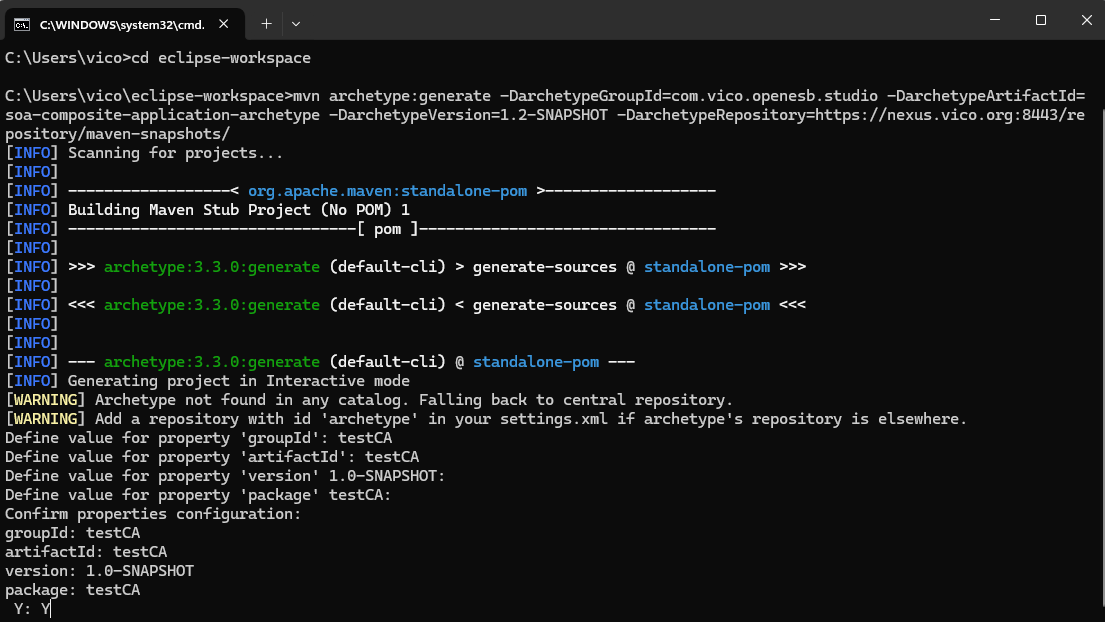
Test performed
-
-
Generate a BPEL project using the mvn command, then copy the src folder from an existing project into the newly created project.
-
Copy the src folder from an existing project into the new project and run mvn clean install. This creates the JAR file in the target directory.
-
Take a new CA and add the BPEL from OpenESB Studio. Do not run a standard build; instead, run mvn clean install in the CA directory. After that, the BPEL is loaded correctly inside the CA.
-
The CA pom.xml file must be modified in order to correctly generate the final ZIP file.
-
Validate with the artifact that the pom.xml file is correct.
-
<![CDATA[<properties>
        <project.build.sourceEncoding>UTF-8</project.build.sourceEncoding>
        <maven.compiler.source>1.8</maven.compiler.source>
        <maven.compiler.target>1.8</maven.compiler.target>
	<bpelproj.name>test3BPEL</bpelproj.name>
        <build.dir>build</build.dir>
        <src.dir>src</src.dir>
        <dist.dir>target</dist.dir>
        <build.classes.dir>${build.dir}/jar</build.classes.dir>
        <dist.jar>${dist.dir}/${artifactId}.zip</dist.jar>
		<project.test3BPEL>..\${bpelproj.name}</project.test3BPEL>
      <reference.test3BPEL.dist_se> ..\${bpelproj.name}\target\SEDeployment.jar</reference.test3BPEL.dist_se>
        <jbi.service-assembly.id>${artifactId}</jbi.service-assembly.id>]]>
<![CDATA[<properties>
		<project.build.sourceEncoding>UTF-8</project.build.sourceEncoding>
		<maven.compiler.source>1.8</maven.compiler.source>
		<maven.compiler.target>1.8</maven.compiler.target>
        <project.name>soa-composite-application</project.name>
		<bpelproj.name>soa-bpel-module</bpelproj.name>
		<build.dir>build</build.dir>
		<src.dir>src</src.dir>
		<dist.dir>target</dist.dir>
		<build.classes.dir>${build.dir}/jar</build.classes.dir>
		<dist.jar>${dist.dir}/testca1.zip</dist.jar>
		<project.BPEL_App_Name>..\${bpelproj.name}</project.BPEL_App_Name>
		<reference.BPEL_App_Name.dist_se>..\${bpelproj.name}\target\SEDeployment.jar</reference.BPEL_App_Name.dist_se>
		<jbi.service-assembly.id>testca1</jbi.service-assembly.id>
		<meta.inf>${src.dir}\conf</meta.inf>
		<jbi.content.additional>${reference.BPEL_App_Name.dist_se}</jbi.content.additional>
		<jbi.content.component>sun-bpel-engine</jbi.content.component>
		<!-- Version properties -->
		<maven.antrun.plugin.version>3.1.0</maven.antrun.plugin.version>
		<openesbvico.version>1.0</openesbvico.version>
	</properties>
	<build>
		<plugins>
			<plugin>
				<groupId>org.apache.maven.plugins</groupId>
				<artifactId>maven-antrun-plugin</artifactId>
				<version>${maven.antrun.plugin.version}</version>
				<executions>
					<execution>
						<id>dist</id>
						<phase>package</phase>
						<configuration>
							<target>
								<property name="BPEL_App_Name.su.name" value="BPEL_App_Name" />
								<unzip src="${reference.BPEL_App_Name.dist_se}" dest="${src.dir}/jbiServiceUnits/${BPEL_App_Name.su.name}">
									<patternset>
										<include name="/*.wsdl" />
										<include name="/.WSDL" />
										<include name="**/.xsd" />
										<include name="/*.XSD" />
										<include name="META-INF/jbi.xml" />
										<include name="META-INF/catalog.xml" />
									</patternset>
								</unzip>
								<property name="BPEL_App_Name.su.dir" value="${src.dir}/jbiServiceUnits/${BPEL_App_Name.su.name}" />
								<move file="${BPEL_App_Name.su.dir}/META-INF/jbi.xml" todir="${BPEL_App_Name.su.dir}" />
								<move todir="${src.dir}/jbiServiceUnits/META-INF/${BPEL_App_Name.su.name}">
									<fileset dir="${BPEL_App_Name.su.dir}/META-INF" />
								</move>
								<mkdir dir="${build.dir}" />
								<copy todir="${build.dir}\" file="${reference.BPEL_App_Name.dist_se}" />
								<mkdir dir="${src.dir}\jbiasa" />
								<copy todir="${src.dir}/jbiServiceUnits" overwrite="true">
									<fileset dir="${src.dir}\jbiasa" />
								</copy>
								<mkdir dir="${build.dir}/META-INF" />
								<jar compress="true" jarfile="${build.dir}/BCDeployment.jar">
									<fileset dir="${src.dir}/jbiServiceUnits">
										<exclude name="/catalog.xml" />
										<exclude name="**/jbi.xml" />
									</fileset>
								</jar>
								<taskdef name="jbi-build-service-assembly" classname="org.netbeans.modules.compapp.projects.jbi.anttasks.BuildServiceAssembly">
									<classpath refid="maven.plugin.classpath" />
								</taskdef>
								<echo message="starting jbi-build-service-assembly ..." />
								<jbi-build-service-assembly />
								<echo message="ending  jbi-build-service-assembly ..." />
								<delete file="${build.dir}/BCDeployment.jar" />
								<dirname property="dist.jar.dir" file="${dist.jar}" />
								<mkdir dir="${dist.jar.dir}" />
								<jar compress="${jar.compress}" jarfile="${dist.jar}" filesetmanifest="merge">
									<fileset dir="${build.dir}" excludes="jar/*" />
								</jar>
							</target>
						</configuration>
						<goals>
							<goal>run</goal>
						</goals>
					</execution>
				</executions>
				<dependencies>
					<dependency>
						<groupId>com.vico.openesb.studio</groupId>
						<artifactId>openesb-dependencies</artifactId>
						<version>0.0.5-SNAPSHOT</version>
					</dependency>
				</dependencies>
			</plugin>
			<plugin>
				<groupId>org.apache.maven.plugins</groupId>
				<artifactId>maven-resources-plugin</artifactId>
				<version>3.2.0</version>
				<configuration>
					<encoding>UTF-8</encoding>
				</configuration>
			</plugin>
		</plugins>
	</build>]]>
Based on what happened during the tests:
At the moment, only one BPEL can be included inside the CA. However, the POM could potentially be modified so that it generates correctly with more than one BPEL. This should be discussed with Mahaveer.
Notes sent by them:
Create BPEL and CA from the command prompt:
-
Go to the BPEL folder and modify the src folder.
-
Build the BPEL using mvn clean install.
-
Open the CA POM and replace the BPEL name.
-
Open Studio, drag and drop the BPEL, and save.
-
Go back to the command prompt and build the BPEL.
-
Then build the CA.
Project migration notes:
-
Without generating the BPEL first, if the CA is generated, will the BPEL also be generated, or is it necessary to generate the BPEL first and then the CA? This needs to be tested.
-
The BAT file that modifies the POM (BPELname) and the CA works with relative paths. This needs to be tested.